
Import a table with a documented mapping and acceptance record rather than judging success by a visible grid.
Prepare a Small, Awkward Sample
Create a working copy and include leading-zero identifiers, quoted commas, non-English characters, an empty date, a negative amount and a repeated business key. These are proposed validation cases. They expose interpretation problems that an ordinary first row can conceal.
Hypothetical example: equipment number 00127 is an identifier, while quantity 127 is a number. If both look identical after import, checking the row count will not reveal that the equipment key has changed. Decide which columns are text before converting them.
Use the Documented New-Table Import Path
The new-table guide supports CSV, Excel and JSON, with encoding and header choices. It states that imported fields default to single-line text and that the first field becomes the display value. Review the mapping before changing field types. Importing into a new table and updating an existing table are different jobs.
The import page lists a 5 MB maximum, while the environment reference exposes a configurable data-import size setting with a different default. Treat that discrepancy as a reason to verify the actual release and upload path. Do not publish one unconditional maximum for every self-hosted instance.
Documentation: Create a NocoDB table via import · NocoDB environment variables
Keep Technical Identity Separate from Labels
NocoDB distinguishes a primary key from its human-readable display value. Give your source business identifier its own retained column, so you can reconcile records after import. Do not rely on the visible row position or a repeated company name to identify a record.
Use the field-type conversion one column at a time. Compare the raw source value with the converted value before continuing. If a date is ambiguous, resolve its source format rather than guessing from the workstation’s locale.
- Confirm the expected header and included columns.
- Compare imported row count with the source data-row count.
- Inspect all deliberately awkward sample values.
- Check repeated business keys and missing identifiers.
- Convert a copy of the relevant column and compare meaning.
- Export a small verification sample and reconcile it by retained source ID.
Documentation: NocoDB field types, primary keys and display values
Accept the Result with a Written Exception List
Record exclusions, repaired values and rejected rows. Do not rerun an import into a live destination until you know whether the chosen operation appends or updates. A second attempt that doubles the records is not an encoding fix. Preserve the clean destination and source copy until the exception list has an owner and an accepted resolution.
Hypothetical CSV acceptance cases
This is an illustrative worksheet to adapt to your own evaluation. It is not a measured product test or a claim about results in your installation.
| Source value | Intended meaning | Check |
|---|---|---|
| 00127 | Equipment identifier | Leading zeros remain intact |
| 2026-11-01 | Calendar date | Same day after conversion/export |
| 12.50 | Decimal amount | Value and precision retained |
| Repeated external ID | Potential duplicate | Reviewed before append or update |
Import into a disposable destination first. Retain a source identifier and validate meaning before converting types or rerunning the job.
Inspect the official interface evidence
These previously captured interfaces provide orientation. Their versions and dates are distinct from the documentation review above.
Inspect the interface, with its context.
Open a specimen to see the source image and the observations it supports. A vendor demonstration is distinct from a self-hosted installation.
NocoDBHistorical vendor product image · Image identifies v2.3; not the current release
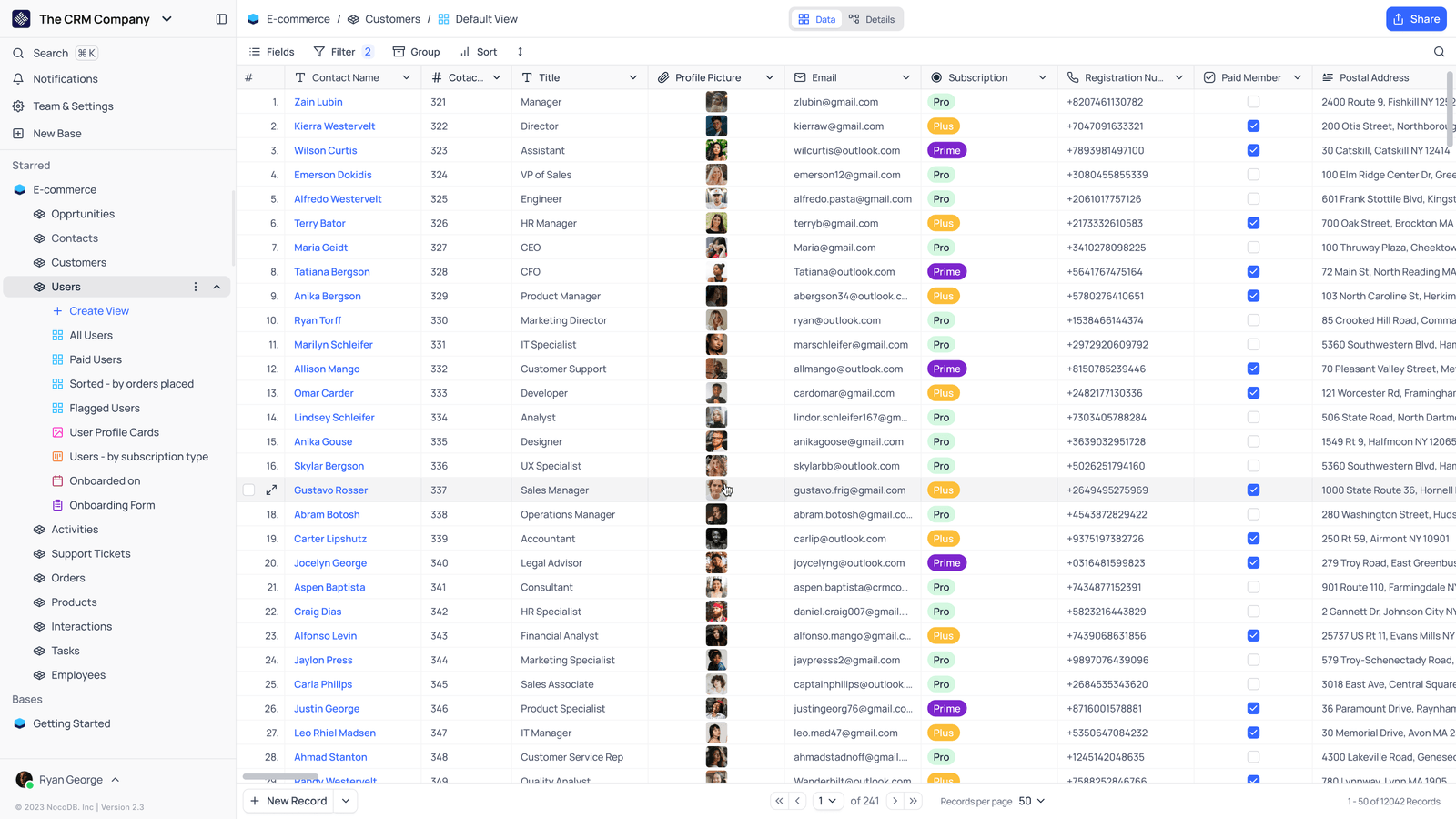
- Saved viewsThe vendor image shows several named views in the left navigation.
- Grid controlsFields, filtering, grouping and sorting appear above the record grid.
- Typed columnsThe example includes text, email and labelled select values. Check the current edition for availability.
Check the facts and their boundaries.
Official documentation supports the product statements. The evaluation procedures and synthetic examples are editorial guidance. We have not independently run the installation, migration or recovery procedures described here.
CSV/Excel/JSON new-table import; separate from existing-table updates. Reviewed 2026-11-01.
Current field semantics; some constraints are restricted by edition and source type. Reviewed 2026-11-01.
Configuration meanings; deployment values and supported release must be checked locally. Reviewed 2026-11-01.